Invoke Integration Actions
The Cyware Intel Exchange integration provides actions that allow you to interact with your Cyware Intel Exchange instance directly from Google SecOps SOAR. You can run these actions manually from a case or include them in playbooks to automate investigation and response workflows.
Invoke Action Manually (from Case)
During an investigation, you can run integration actions directly from a case to query or update indicator information in Cyware Intel Exchange. Running actions manually allows you to perform targeted operations on specific entities associated with the case.
Steps
To run an action manually from a case, follow these steps:
In Cases, go to the Case Overview tab of the case where you want to run the action.
Click the
 icon in the Case Top Bar. The Manual Action dialog box appears.
Select the required action from CywareIntelExchange > [Action Name], and provide all the required information.
In Entities, optionally specify the entities to include in the action input. For more information about entities, see Select Entities for an Action.
Click Execute to run the action.
After the action runs, the execution result appears on the Case Wall, including the action status and the output returned by the Cyware Intel Exchange API.
When invoking an action manually, you can control which entities from the case are passed as inputs to the action. This allows you to run the action on specific entities, all entities, or entities of a particular type.
Use this option when you want to run the action only on selected entities from the case.
Steps
To select specific entities, follow these steps:
In the Manual Action dialog box, go to the Entities section, and select Specific.
From the dropdown list, select the entity you want to include in the action.

Only the selected entities are passed to the action as inputs.
Use this option when you want to run the action on all entities associated with the case.
Steps
To select all entities, follow these steps:
In the Entities section, select Group.
From the dropdown list, select All Entities.

All entities available in the case are passed as inputs to the action.
Use this option when you want to run the action on all entities of a specific type.
Steps
To select entities by type, follow these steps:
In the Entities section, select Group.
From the dropdown list, select the required entity type. For example, All domains.
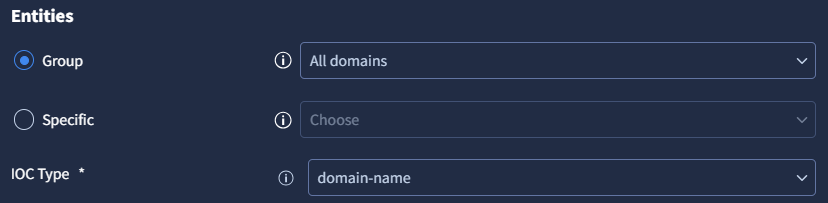
All entities of the selected type are passed to the action.
Invoke Actions Automatically (from Playbooks/Blocks)
You can automate Cyware Intel Exchange actions by adding them to playbooks. This enables Google SecOps SOAR to execute actions automatically during investigations or in response workflows.
Steps
To add an integration action to a playbook, follow these steps:
Go to Response > Playbooks. This displays all available automation workflows.
Open an existing playbook or create a new one.
Click + Open Step Selection to add a new step to the playbook workflow.
Select the Actions tab. This tab lists all actions available from configured integrations.
Under the CywareIntelExchange integration, drag the required action into the playbook workflow.
Configure the required input parameters for the action. When the playbook runs, the configured action executes automatically as part of the workflow.