EUVD
Connector Category: API Feed Source
Notice
This integration is available in Intel Exchange from v3.7.6.1 onwards.
About Integration
The ENISA European Vulnerability Database (EUVD) is a centralized European Union resource that provides comprehensive vulnerability intelligence, including EUVD-specific identifiers and coordinated vulnerability information. Intel Exchange integrates with EUVD using the latest supported API endpoints, enabling security analysts to ingest and analyze EU-centric vulnerability data directly within the platform.
This integration allows analysts to access up-to-date vulnerability intelligence, improve situational awareness, and support regulatory and compliance requirements relevant to EU-based operations while maintaining alignment with Intel Exchange's existing vulnerability data model.
In Intel Exchange, the EUVD integration retrieves the following types of threat data objects:
Vulnerability
Report
Tool
Use Cases
Ingest EU-centric vulnerability intelligence from the ENISA EUVD feed in Intel Exchange, enabling analysts to monitor newly disclosed and updated vulnerabilities relevant to European ecosystems.
Correlate EUVD vulnerabilities with other vulnerability feeds in Intel Exchange to improve analysis, reduce duplication, and maintain unified visibility across multiple sources.
Configure EUVD
Integrate with EUVD as a feed source and start receiving threat intel in Intel Exchange. You can use the following sections for more information:
Configure EUVD as a Feed Source
Configure EUVD as an API feed source in Intel Exchange to retrieve vulnerabilities, tools, and reports from EUVD.
Before you Start
You must have the View API Feed, View Feed Source, Create Feed Source, and Update Feed Source permissions in Intel Exchange.
You must have the base URL and API key of your EUVD account.
Steps
To configure EUVD as an API feed source in Intel Exchange, follow these steps:
Go to Administration > Integration Management. In FEED SOURCES, click APIs.
Click Add API Source.
Search and select EUVD.
Click Add Instance and enter the following details:
Instance Name: Enter a unique name to identify the instance. For example, Prod-EUVD.
Base URL: Enter the base URL of your EUVD instance. The default base URL is
https://euvdservices.enisa.europa.eu/.Verify SSL: Select this to verify the SSL certificate and secure the connection between the Intel Exchange and EUVD servers. By default, verification is enabled.
Note
Enabling SSL verification is recommended. If you disable this option, it may result in the use of an expired SSL certificate while configuring the instance. This may not establish the connection properly, and you will not be notified in case of a broken or improper connection.
Click Save.
After the EUVD is configured successfully, you can view the feed channels. You can configure multiple instances by clicking Manage > Add More.
Configure EUVD Feed Channels
Configure the feed channels to retrieve threat data from EUVD and store them in collections within Intel Exchange.
Steps
To configure the feed channels, follow these steps:
Go to Administration > Integration Management. In FEED SOURCES, click APIs.
Search and select EUVD.
Click the vertical ellipsis, and select Manage.
Click Manage Feed Channels.
Select a feed channel and turn on the toggle. Use the following information while configuring the channel:
Start Date and Time: Enter the date and time to start polling feeds. Select a date within 15 days from the current date.
Collection Name: Enter the name of the collection to group the feed data. For example, EUVD Feeds. Intel Exchange creates all the collection and stores all the feeds from the feed channel.
CVSS Score Threshold: Filters vulnerabilities based on their CVSS score. The allowed range is 0 – 10.
EPSS Score Threshold: Filters vulnerabilities based on their EPSS score. The allowed range is 0 - 100.
Polling Cron Schedule: Select from one of the following Polling Cron Schedule types to define when to poll the data:
Manual: Allows you to manually poll from the source collection.
Auto: Allows you to automatically poll for threat intel from sources at specific time intervals. The default polling cron schedule is Auto. Enter a frequency in minutes between 240 and 21600 minutes in Polling Time. The default polling time is 1440 minutes.
TLP: Set the TLP for the feeds that do not have a TLP already assigned. The default TLP is Amber. Alternatively, you can select None to ensure that no TLP is assigned to the feeds.
Default Source Confidence: Enter the confidence score for the feeds that do not have a confidence score already assigned. The default confidence score is 100.
Deprecartes after: Specify the number of days after which the threat (indicator) will be marked as deprecated, unless the source defines its own expiry duration. The allowed range is 1-180 days.
Custom Score: Select the Relevance and Severity Score for the channel.
Default Tags: Select any tags to identify and categorize the feeds.
Click Save.
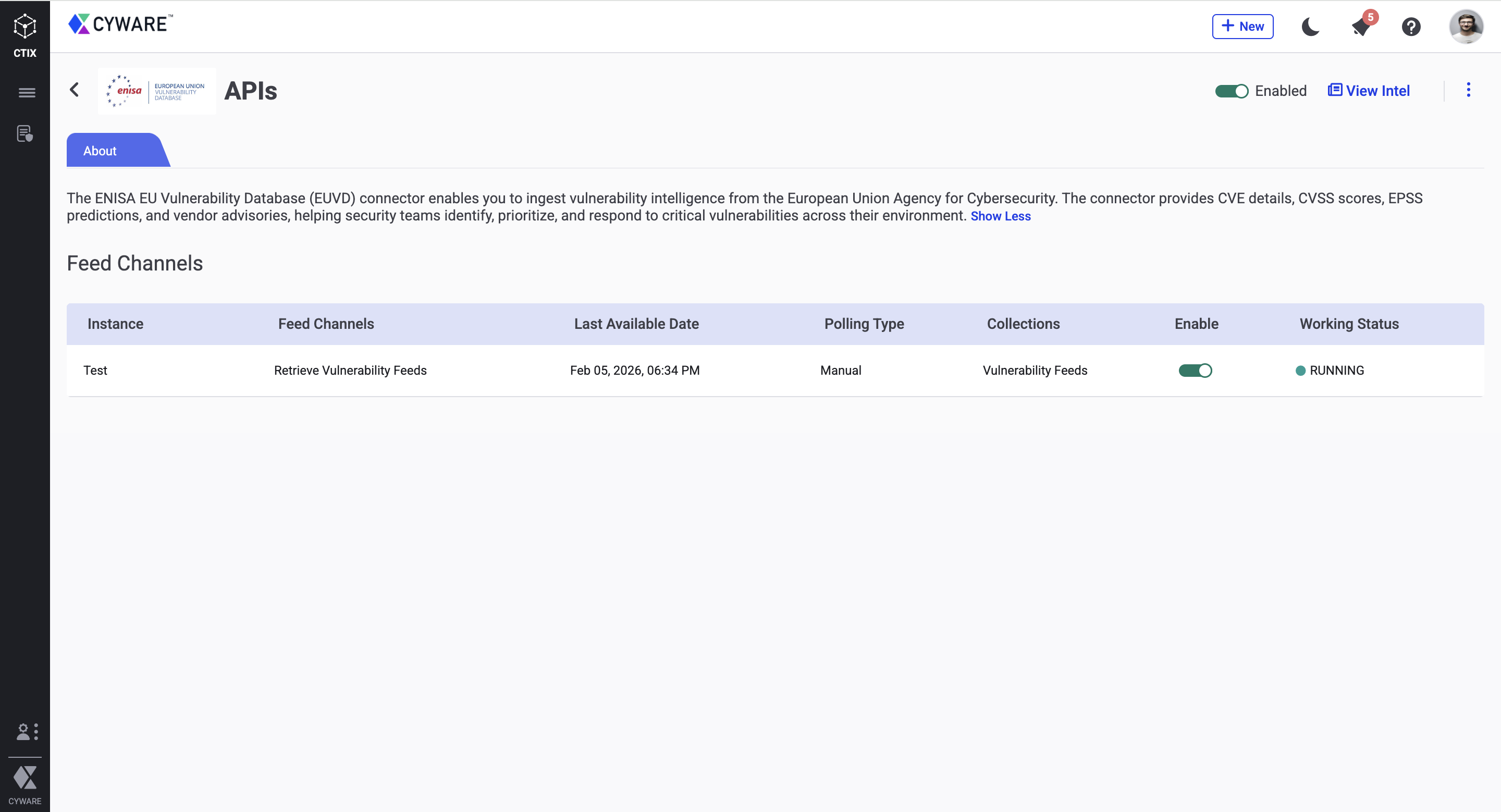
The feed channel is configured, and you can poll feeds from the channel. You can enable the other feed channels and poll feeds, and view the feeds.
Test Feed Channel Connectivity
Test the connectivity of the EUVD API feed channels to ensure that the connection with the correct API endpoint is established and that you have permission to poll feeds.
Before you Start
Ensure that the EUVD API feed source is enabled.
Ensure that the feed channel for which you want to test connectivity is enabled.
Steps
To test the connectivity of a feed channel, follow these steps:
Go to Administration > Integration Management. In FEED SOURCES, click APIs.
Search and select the EUVD app.
On a feed channel, click the vertical ellipsis and select View Details.
In the Working Status section, click Test Connectivity.
If the connection is established, then the working status shows Running. If the connectivity is broken, then the working status shows a Connection Error. Hover over the tooltip next to Connection Error to view the error code.
Note
When a feed channel loses connectivity, it is automatically disabled, and the system attempts to restore connectivity three times every hour. If the connectivity is successfully restored, the feed channel is automatically re-enabled.
To understand the error code and troubleshoot broken connectivity, see Troubleshoot Integrations
EUVD Feed Channels
The following table lists the feed channel and the API endpoint used to retrieve feeds from EUVD:
Feed Channel | API Endpoint |
|---|---|
Retrieve Vulnerability Feeds |
|