GreyNoise
Connector Category: API Feed Source
Notice
This integration is enhanced with updated Feed List Type options. Users on Intel Exchange v3.7.6.2 and above can access these updates in the GreyNoise integration.
Overview
What is this integration about?
Intel Exchange integrates with GreyNoise to retrieve actionable threat intel related to IPv4 indicators, vulnerabilities, identities, and observables such as ASNs and domains. This integration provides access to enriched data, including geolocation details, to help analysts make informed decisions on risks and potential threats.
In Intel Exchange, the GreyNoise integration retrieves, the following types of threat data objects:
Vulnerability
Identity
ASN Object
Observable (Domains)
Location
Configure GreyNoise
Integrate GreyNoise as a feed source and start receiving threat intel in Intel Exchange. You can use the following sections for more information:
Configure GreyNoise as a Feed Source
Configure GreyNoise as an API feed source to retrieve IPv4 indicators, vulnerabilities, identities, and observable data.
Before you Start
You must have the View API Feed, View Feed Source, Create Feed Source, and Update Feed Source permissions in Intel Exchange.
You must have the base URL and bearer token of your GreyNoise account.
Steps
To configure GreyNoise as an API feed source in Intel Exchange, follow these steps:
Go to Administration> Integration Management and select APIs under FEED SOURCES.
Click Add API Source.
Search and select the GreyNoise app.
Click Add Instance and enter the following details:
Instance Name: Enter a unique name to identify the instance. For example, Prod-GreyNoise.
Base URL: Enter the base URL of your GreyNoise instance. The default base URL is
https://api.greynoise.io/.Bearer Token: Enter the API token to authenticate communication between the Intel Exchange and GreyNoise servers.
Verify SSL: Select Verify SSL to verify the SSL certificate and secure the connection between the Intel Exchange and GreyNoise servers. By default, Verify SSL is selected.
Note
Cyware recommends you select Verify SSL. If you disable this option, Intel Exchange may configure an instance for an expired SSL certificate. This may not establish the connection properly and Intel Exchange will not be able to notify you in case of a broken or improper connection.
5. Click Save.
After the GreyNoise instance is configured successfully, you can view the feed channels available for the instance. You can configure multiple instances by clicking Manage > Add More.
Configure GreyNoise Feed Channel
Configure the GreyNoise feed channels to retrieve threat intel feeds related to IPv4 indicators, vulnerabilities, identities, and observables.
Steps
To configure a feed channel, follow these steps:
Go to Administration > Integration Management and select APIs under Feed Sources.
Search and select the GreyNoise app.
Click the ellipsis on the top right corner and select Manage.
Click Manage Feed Channels
Select a feed channel and turn on the toggle to enable the channel.
Enter the following details:
Start Data and Time: Enter the date and time within 15 days from the current time to start polling feeds.
Collection Name: Enter the collection name to group the feeds retrieved from the channel. For example, GreyNoise Reports. A new collection is created, and all the feeds retrieved from the feed channel are stored in the collection.
Feed List Type: Select the type of feed you want to retrieve from the source. The available options are:
Benign Feed: Retrieve only non-threatening or harmless feeds for analysis.
Malicious Feed: Retrieve feeds identified as threats or malicious activities.
Benign + Suspicious + Malicious Feed (Default): Retrieve harmless, suspicious, and malicious feeds for a comprehensive view across all threat categories.
Suspicious Feed: Retrieve feeds flagged as suspicious for further investigation and threat analysis.
All Feeds: Retrieve all available feeds, regardless of their classification.
Polling Cron Schedule: Select from one of the following Polling Cron Schedule types to define when to poll the data:
Manual: Allows you to manually poll from the source collection.
Auto: Allows you to automatically poll for threat intel from sources at specific time intervals. The default polling cron schedule is Auto.
Enter a frequency in minutes between 1440 and 10080 minutes in Polling time. The default polling time is 1440 minutes.
TLP: Set a default TLP to assign to the feeds that do not include a source TLP. By default, the default TLP is set to Amber.
Default Source Confidence: Set a default Confidence Score to assign to the feeds. Since GreyNoise does not provide any Confidence Score, the default source confidence is applied to all ingested feeds. By default, the default Confidence Score is set to 100.
Deprecates after: Specify the number of days after which the threat data (indicator) will be marked as deprecated, unless the source defines its own expiry duration. The allowed range is 1-180 days.
Custom Score: Select the Relevance and Severity Score for the channel.
Default Tags: Select the tags to identify and categorize the feeds.
Click Save.
The feed channel is configured, and you can poll feeds from the channel. Similarly, you can configure other feed channels of the GreyNoise API feed source.
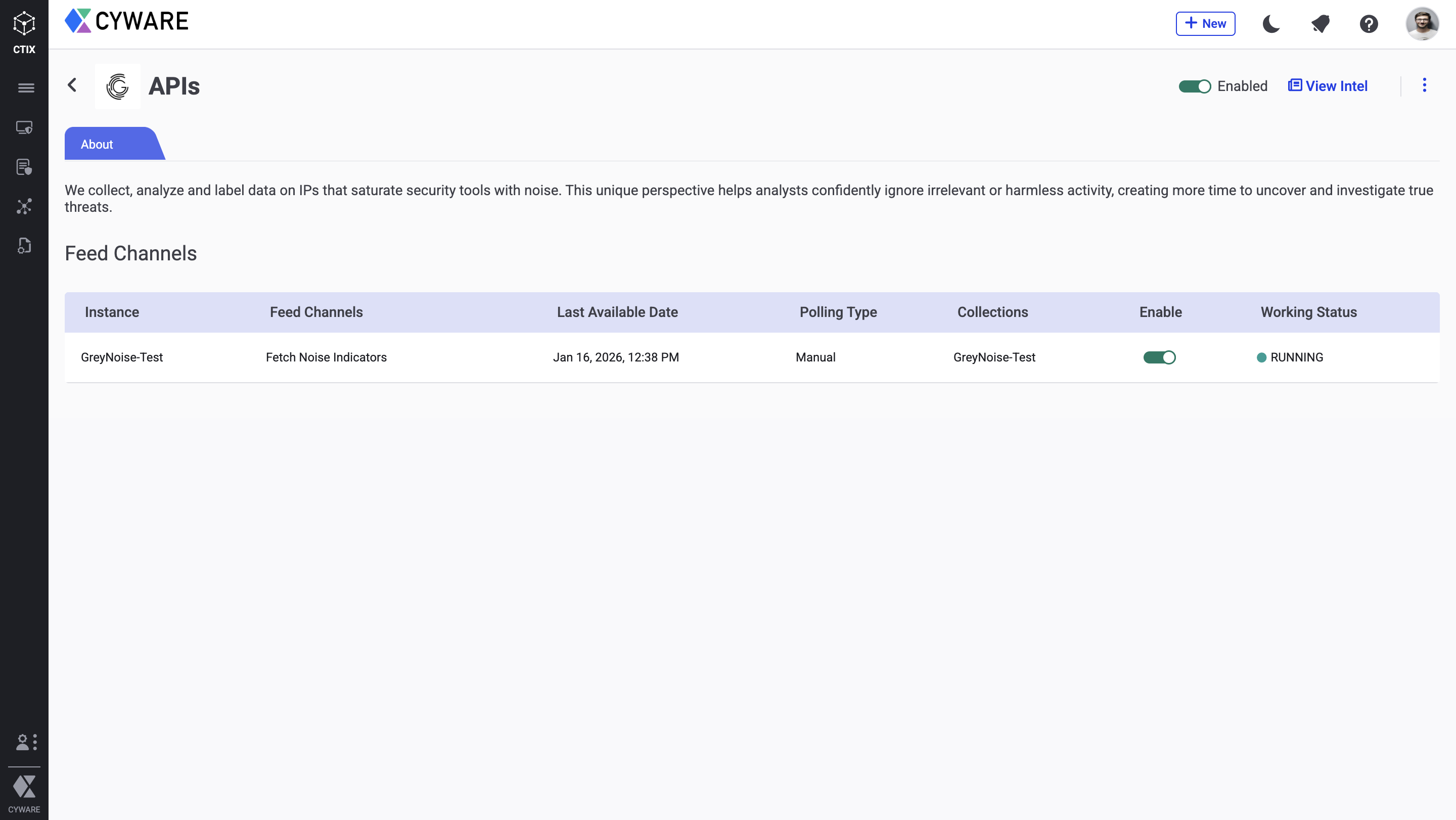
Test Feed Channel Connectivity
Test the connectivity of the GreyNoise API feed channels to ensure that the connection with the correct API endpoint is established and that you have permission to poll feeds.
Before you Start
Ensure that the GreyNoise API feed source is enabled.
Ensure that the feed channel you want to test connectivity is enabled.
Steps
To test the connectivity of a feed channel, follow these steps:
Go to Administration > Integration Management and select APIs under FEED SOURCES.
Search and select the GreyNoise app.
On a feed channel, click the vertical ellipses and select View Details.
In the Working Status section, click Test Connectivity.
If the connection is established, then the working status shows Running. If the connectivity testing results in an error, then the working status shows a Connection Error. Hover over the tooltip next to Connection Error to view the error code.
Note
When the connectivity of a feed channel breaks, Intel Exchange disables the channel and re-attempts to restore the connectivity three times every hour. After a successful re-attempt to restore the connectivity, Intel Exchange enables the feed channel automatically.
To understand the error code and troubleshoot broken connectivity, see Troubleshoot Integrations.
For more information on how to poll feeds manually, view ingested intel, and manage API feed sources, see API Integrations.
GreyNoise Feed Channels
The following table lists all the feed channels and the GreyNoise API endpoints used for each feed channel.
Feed Channel | API Endpoint |
|---|---|
Fetch Noise Indicators |
|
Changelog
The following table lists the changelog for each version of this integration:
Version | Release Date | Changes |
|---|---|---|
v3.7.6.2 | 10 March, 2026 | Updates the default Feed List Type to Benign + Suspicious + Malicious Feed and introduces a new Suspicious Feed option to enable more granular feed retrieval in the GreyNoise integration. |
v3.7.5.8 | 22 January, 2026 | Updates the GreyNoise API feed endpoint from |
v3.7.4.0 | 08 April, 2025 | Introduces the initial release of the GreyNoise integration in Intel Exchange. |