Configure Webhook in Microsoft Sentinel
After generating the webhook for Microsoft Sentinel in Collaborate, you can add this webhook to a logic app in Microsoft Sentinel. Whenever you run this logic app, the incidents are available in Collaborate.
Before you Start
Ensure that you have generated the webhook for Microsoft Sentinel in Integrations. For more information about generating the webhook URL, see Configure Detect Integrations.
In Microsoft Azure, search for Logic apps.
To add a logic app, click Add.
Subscription: Select the subscription for the logic app based on your preference.
Resource group: Select the resource group for the logic app.
Logic App name: Enter the logic app name. For example, ACD-logic-app.
Publish: Select the publish option. The recommended publish option is Workflow.
Plan type: Select the plan type as Consumption.
After adding the required details, click Review + create.
After the logic app deployment is complete, click Go to resource.
In Development Tools, click Logic app designer.
In Templates, select Blank Logic App.
In Designer, add the following steps:
Step 1: Search and select the Microsoft Sentinel connector. You will need to sign in to your Microsoft account before selecting the trigger.
Step 2: Select the trigger for the logic app. The recommended trigger is Microsoft Sentinel incident (preview).
Click New Step.
Step 3: Select the Parse JSON operator which is a part of Data Operations.
Content: Click Add dynamic content. Search and select Body
Schema: Copy and paste the following JSON snippet:
{
  "properties": {
    "properties": {
      "properties": {
        "body": {
          "properties": {
            "type": {
              "type": "string"
            }
          },
          "type": "object"
        },
        "description": {
          "properties": {
            "type": {
              "type": "string"
            }
          },
          "type": "object"
        },
        "firstActivityTimeUtc": {
          "properties": {
            "type": {
              "type": "string"
            }
          },
          "type": "object"
        },
        "incidentNumber": {
          "properties": {
            "type": {
              "type": "string"
            }
          },
          "type": "object"
        },
        "severity": {
          "properties": {
            "type": {
              "type": "string"
            }
          },
          "type": "object"
        },
        "title": {
          "properties": {
            "type": {
              "type": "string"
            }
          },
          "type": "object"
        }
      },
      "type": "object"
    },
    "type": {
      "type": "string"
    }
  },
  "type": "object"
}
Click New Step.
Step 4: Search and select HTTP as the operation. Ensure that the Method is POST and in URI, enter the webhook URL you generated in Collaborate.
Additionally, in the Body field, click Add dynamic content. Search and select Body
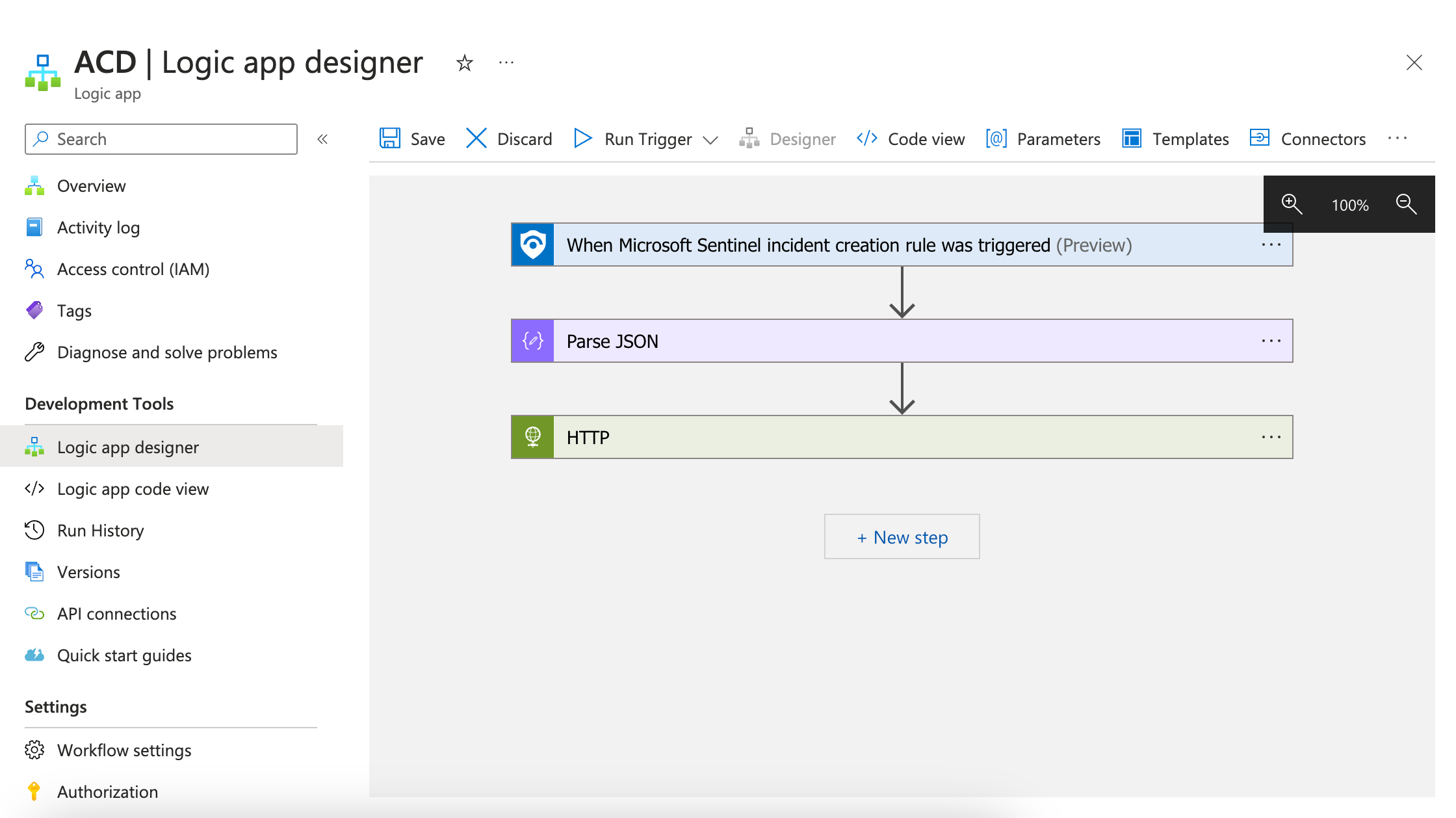
Click Save. The logic app is now configured with the webhook URL.
In Microsoft Azure, go to Microsoft Sentinel.
Select the resource group for which you previously created the logic app in step 1.
In Threat management, select Incidents.
Select the incident for which you want to receive details in ACD, and click Actions.
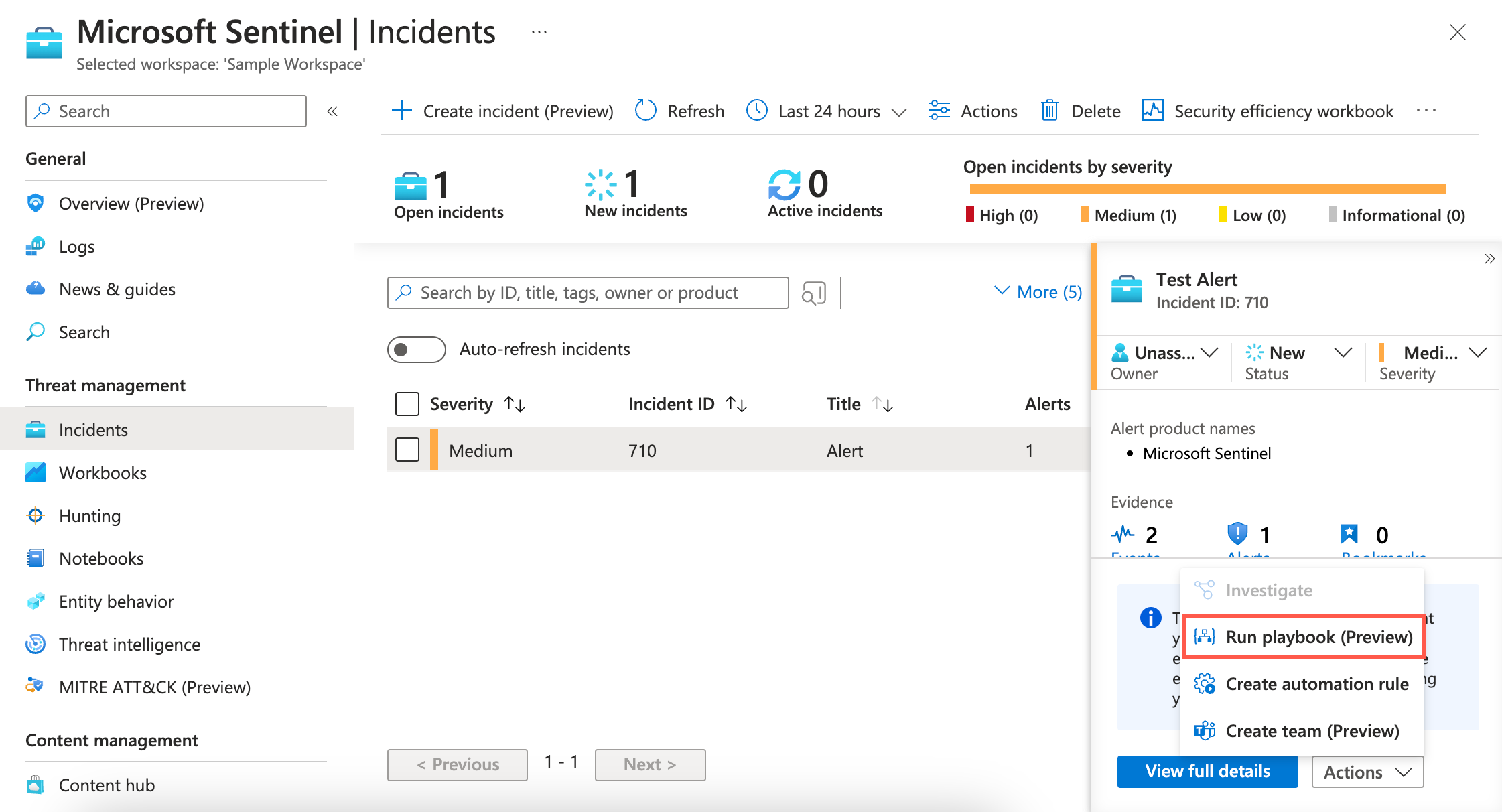
Select Run Playbook (preview) and select the ACD-related playbook.
To run the playbook for the incident, click Run.
Results
After the webhook is successfully added to the incident, you will now start receiving related data in Automated Collective Defense > Intel Repository > My Collection whenever the incident playbook is triggered in Microsoft Sentinel.