Alert Rules
You can configure rules to automate alert sharing and receiving tasks when a defined condition occurs. This helps organizations and communities streamline manual tasks and simplify workflows for alert sharing and receiving.
You can create the following two types of rules:
Alert Sharing Rules: This rule type automates the alert-sharing process between two Collaborate organizations.
Alert Receiving Rules: This rule type automates the process of receiving alerts from sharing communities.
Alert Sharing Rules
Alert Sharing Rules allow you to specify which alerts are automatically shared with selected community entities. By defining one or more conditions, you can control alert sharing with greater precision.
How do Rules help automate sharing tasks?
This section demonstrates the alert sharing process between two Collaborate organizations.
An Organization 1 creates API credentials and shares them with Organization 2.
Organization 1 defines the rule conditions for receiving alerts.
Organization 2 uses the credentials to create a Sharing Community.
Organization 2 defines the rule conditions for sharing alerts.
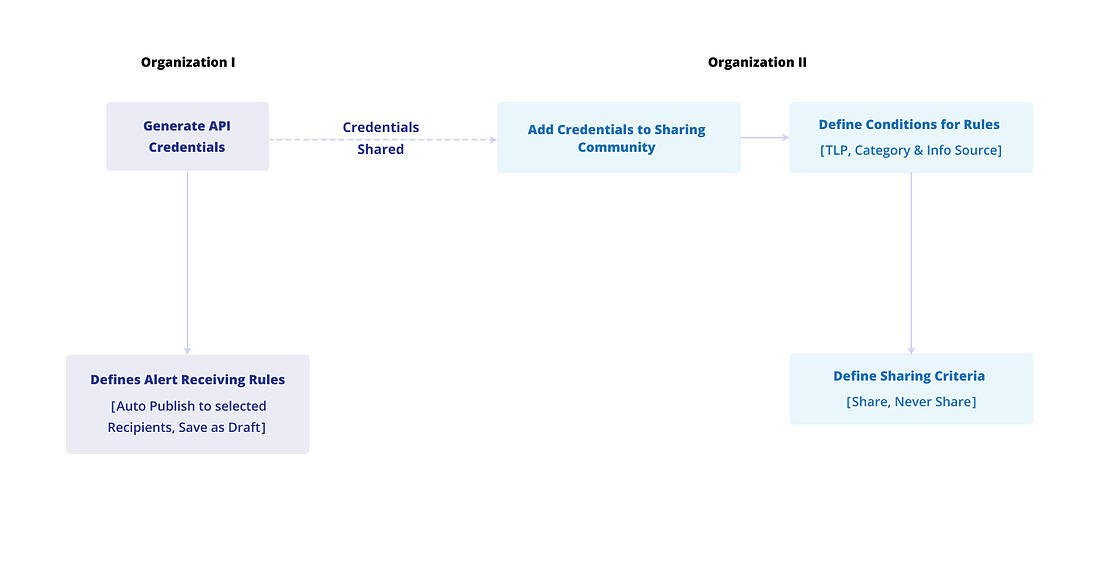
When Organization 2 creates an alert, the configured rule determines the outcome. If the alert matches the rule conditions, the rule’s action is applied. This action may allow the alert to be shared with Organization 1 or prevent it from being shared.
Create an Alert Sharing Rule
Create an Alert Sharing Rule to define the conditions under which alerts should be shared with a selected organization.
Before you Start
Ensure that you have the Create, View, and Update permissions to the Trusted Sharing Community module.
Steps
To create an alert sharing rule, follow these steps:
Go to Administration > Community Sharing > Rules, and click Create.
In Basic Info, provide the following information:
Rule Name: Enter a descriptive name for the rule. For example, Share High-Priority Malware Alerts
Select Rule Type: Select Alert Sharing to create an alert sharing rule.
Click Next to define the rule condition.
In Conditions, use the following information to define when the rule should apply:
Select at least one field from Category, TLP, Tags, or Alert Title. Based on the category you select, you can also add Category-Specific Fields to refine the rule.
Note
Tags and Alert Title options are available in Collaborate v3.8.11 onwards.
Use AND/OR to define how the selected conditions relate to each other.
You can view the conditions as logical queries in the custom query builder. Click Next to define the resulting action.
In Actions, configure how alerts that match the conditions are handled using the following information:
Action: Select Share Alert to share alerts that meet the conditions. Alternatively, select Don't Share Alert to prevent sharing when the conditions are met.
Target: Select one or more entities to apply the rule to.
Turn on the Active toggle to activate the rule.
Click Submit to create the alert sharing rule.
If the rule is active, it will automatically apply to alerts that meet the configured conditions.
Alert Receiving Rules
Receiving Rules define how your organization handles alerts shared by other organizations. These rules allow you to control which incoming alerts are accepted and how they are processed based on the conditions you set.
How do Rules help automate receiving tasks?
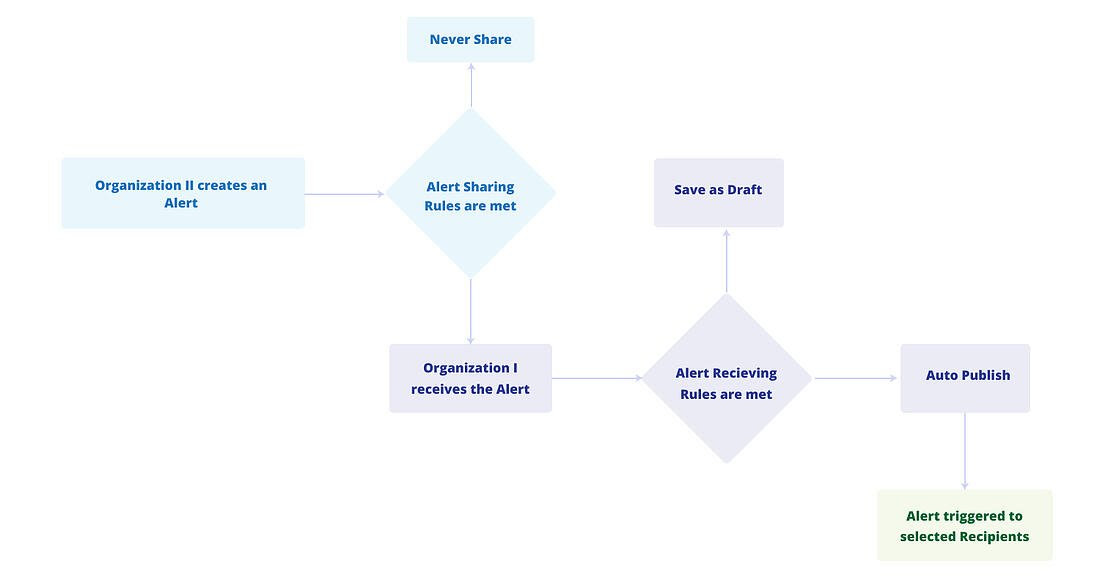
This section demonstrates the alert receiving process between two Collaborate organizations.
An Organization 1 creates API credentials and shares them with Organization 2.
Organization 1 defines the rule conditions for receiving alerts.
Organization 2 uses the credentials to create a Trusted Sharing Community.
Organization 2 defines the rule conditions for sharing alerts.
Organization 2 creates an alert and if rules are met either the alert will never be shared or it will be shared with Organization 1. This is based on the rule conditions defined by the admin.
Similarly, when Organization 1 receives the Alert, it will either be auto-published to recipients or saved as a draft based on conditions defined by the admin.
Create an Alert Receiving Rule
Create an Alert Receiving Rule to define the conditions under which your organization receives alerts shared by other organizations.
Before you Start
Ensure that you have the Create, View, and Update permissions to the Trusted Sharing Community module.
Steps
To create an alert receiving rule, follow these steps:
Go to Administration > Community Sharing > Rules, and click Create.
In Basic Info, provide the following information:
Rule Name: Enter a descriptive name for the rule. For example, Receive High-Priority Alerts from Partner Communities
Select Rule Type: Select Alert Receiving to create an alert receiving rule.
Click Next to define rule conditions.
In Conditions, use the following information to define when the rule should apply:
Community Source: Select the source communities from which you want to receive the alerts.
TLP (Optional): Select one or more TLPs to further refine which alerts the rule applies to.
You can view the conditions as logical queries in the custom query builder. Click Next to define the resulting action.
In Actions, define the action you want to perform with the received alert using the following information:
Action: Select how received alerts should be handled when they meet the conditions:
Auto Publish Alert: Alerts that match the conditions are published immediately to the selected recipient groups. You can add recipient groups directly in Recipient Groups or by using filters such as Groupset, Group Type, and TLP.
Save as Draft: Alerts are saved as drafts for review and can be published later.
View, Edit, or Clone Rules
You can manage rules from the Rules tab. Hover mouse pointer over a rule on the list to view the below options.
Click on the View Rule button to view details of a rule.
Click on the Clone Rule button to clone an existing rule, make minor changes, and quickly make it active.
Click on the Edit Rule button to modify the details of a rule.
Tip
The Connections data for a rule shows the number of Trusted Sharing Communities or Recipient Groups associate with a rule.