Getting Started with CCM
Compromised Credential Management (CCM) provides your organization with tools to monitor compromised accounts, gather critical threat insights, and initiate actions to protect your digital assets.
To set up CCM, follow these steps:
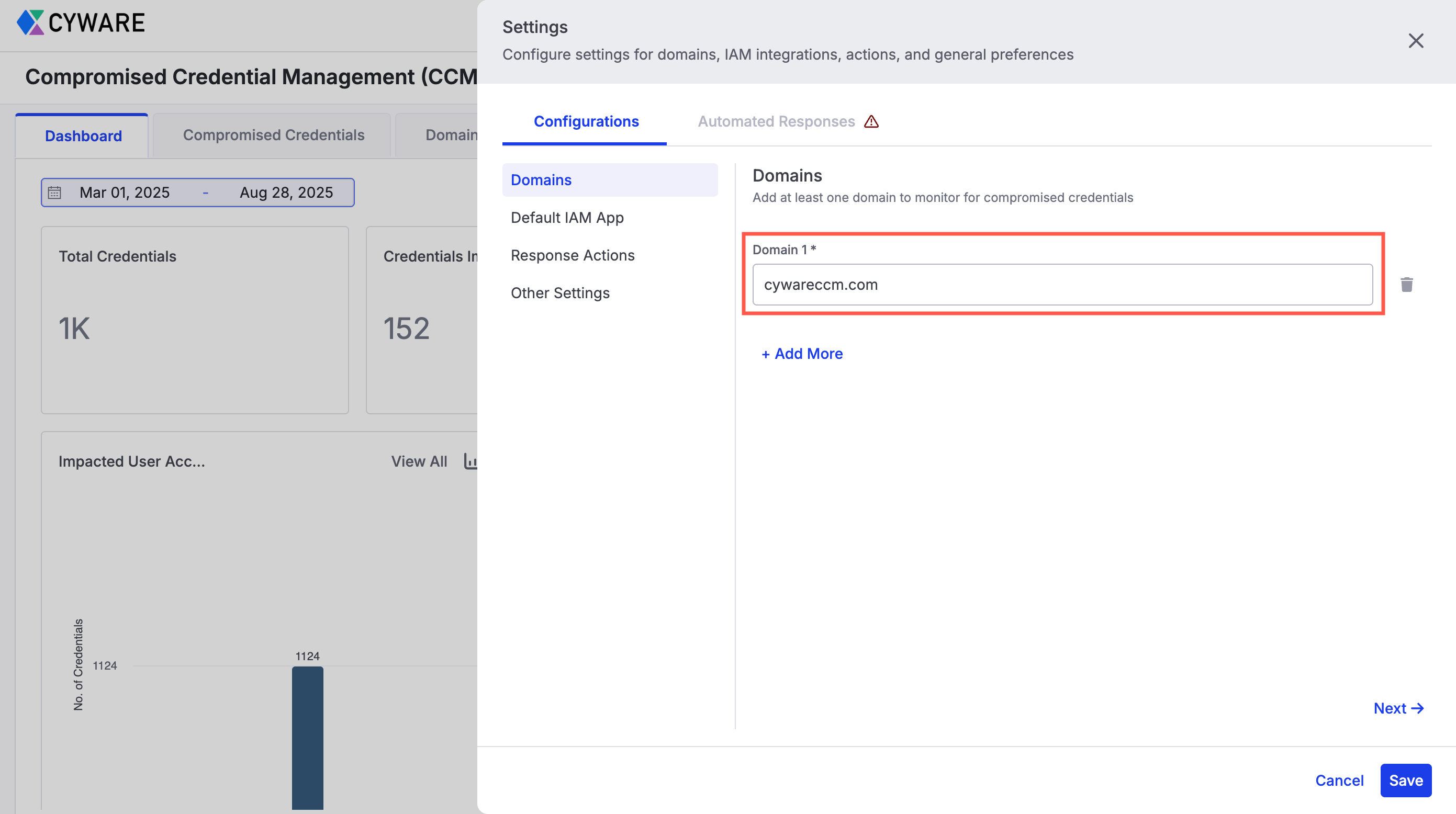
Configure Domains: Add one or more domains to monitor for compromised credentials and dark web mentions in Settings. CCM uses these domains to fetch both credential breach data and domain sightings from integrated sources. For more information, see Configurations.
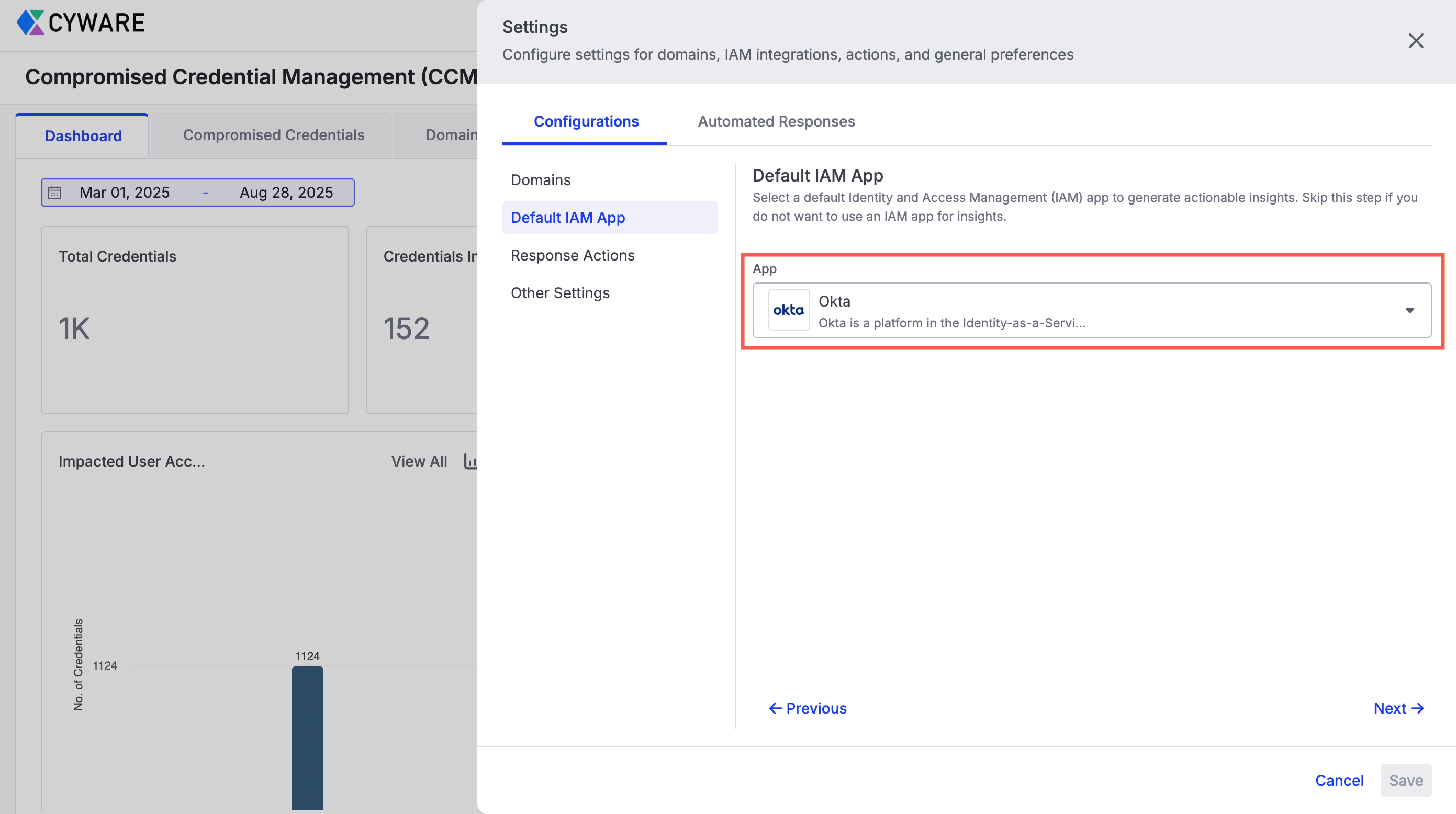
Configure IAM App: Integrate with IAM tools to analyze threat insights by correlating compromised credentials with user accounts. This helps you identify risks and prioritize actions. For more information, see Configurations.
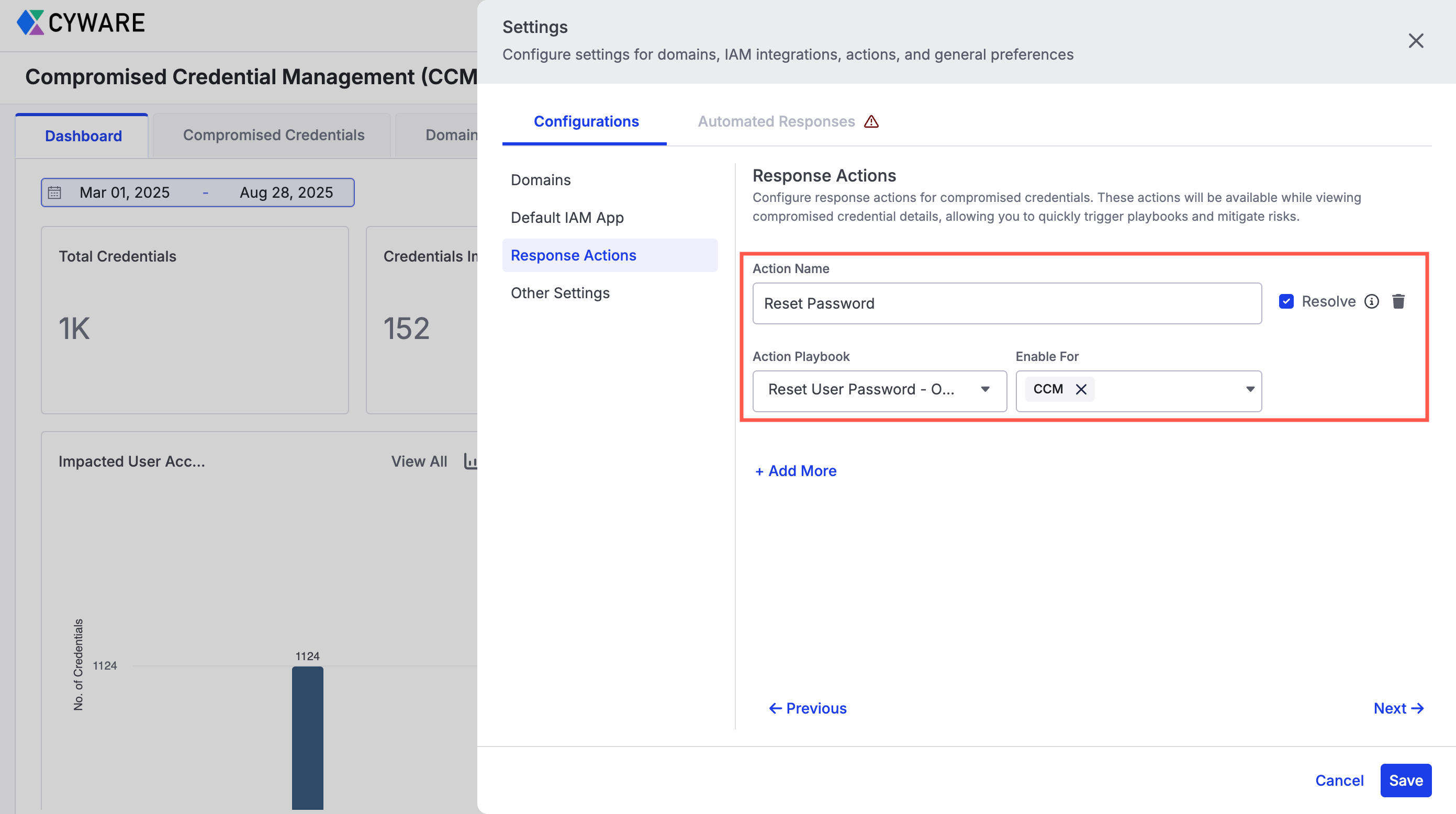
Configure Actions for Response: In Settings, set up response actions to quickly mitigate risks. You can trigger these actions while reviewing compromised credentials or domain sightings. For more information, see Configurations.
Additionally, you can configure Automated Responses to reduce manual efforts. Automated responses help simplify your workflow by automatically applying corrective measures when potential threats are identified. For more information, see Automated Responses.
What are the different components of CCM?
The user interface of CCM consists of the following components:
Components | Description |
|---|---|
Compromised Credentials | Monitor user credentials exposed in third-party breaches. View consolidated, deduplicated records from all sources, correlate them with IAM data, and take action to reduce risk across affected accounts. For more information, see View Compromised Credentials. |
Domain Sightings | Track where your organization’s domains are mentioned on dark web forums and marketplaces. Investigate each sighting with source-level details. For more information, see View Domain Sightings. |
Dashboard | Analyze trends, monitor exposure across credentials and domains, and assess the performance of third-party data sources. For more information, see View Dashboard. |
Manage Apps | Configure integrations with third-party sources, IAM tools, and more. These integrations facilitate breach detection, user correlation, and automated response actions. For more information, see Configure CCM Integrations. |
Settings | Configure monitored domains, set default IAM apps, and define automated response actions for exposed users. Tailor CCM to your organization’s needs for effective monitoring and proactive security. For more information, see Configure CCM. |