Configure CCM
Use Settings in Compromised Credential Management (CCM) to configure key components like domains, default IAM integration, response actions, automated responses, and more. These settings help you tailor CCM to your organization’s workflows and ensure effective monitoring and response across all supported threat types. To access these settings, go to Exposure Management > Compromised Credential Management > Settings.
Configurations
Use Configurations to set up the core components that power CCM. Define the domains you want to monitor, select your default IAM integration, configure response actions for quick remediation, and adjust additional settings to align CCM with your organization’s security processes.
Note
You must add at least one domain for CCM to work. All other settings are optional.
Use the following components to configure CCM:
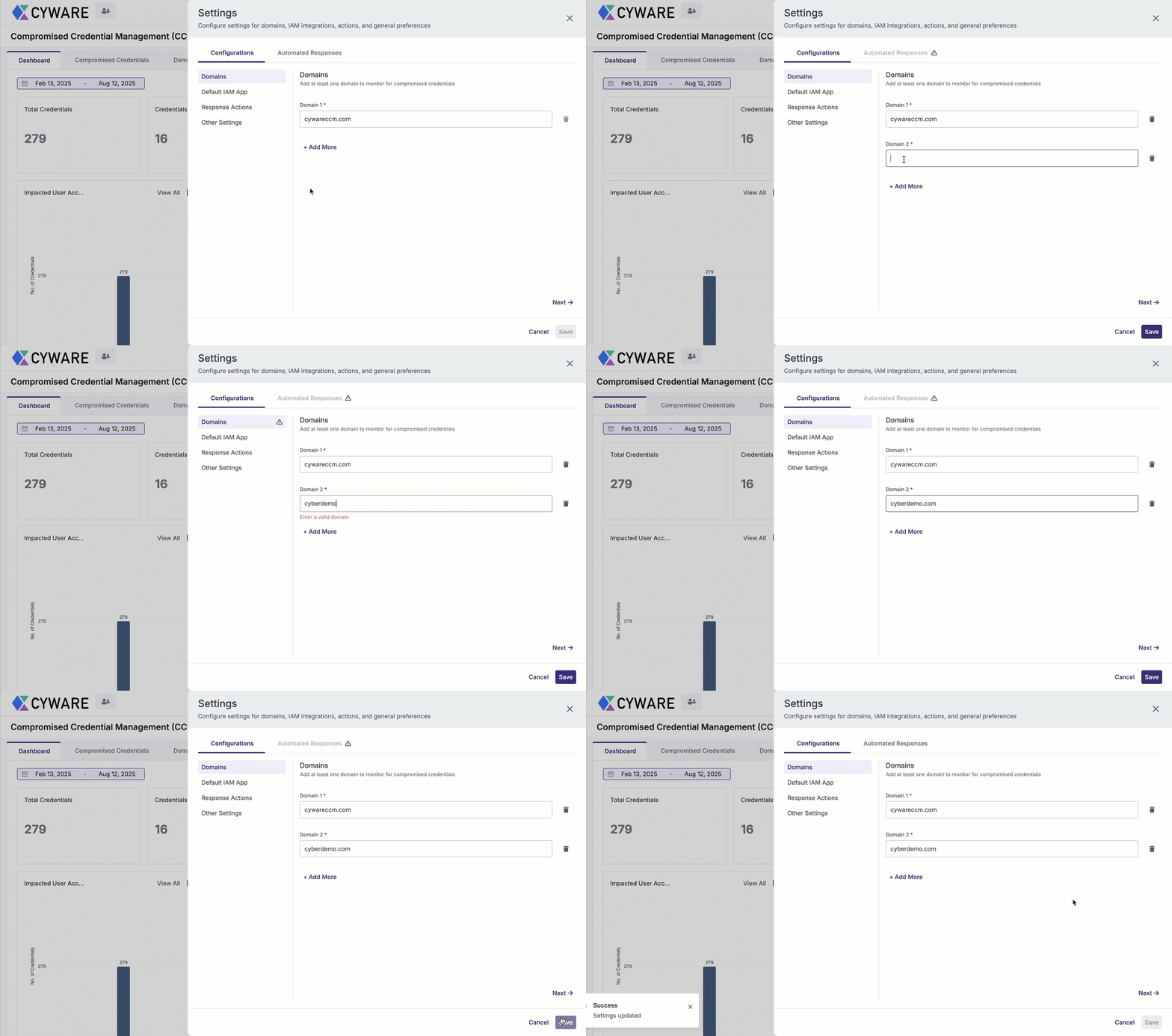
Enter a domain in Domain 1 to start monitoring for compromised credentials and domain sightings. The domain remains under continuous monitoring, and any newly reported breaches are automatically added to the breach data. To add more domains to monitor, click Add More.
Note
Deleting a configured domain removes all associated monitoring data from CCM.
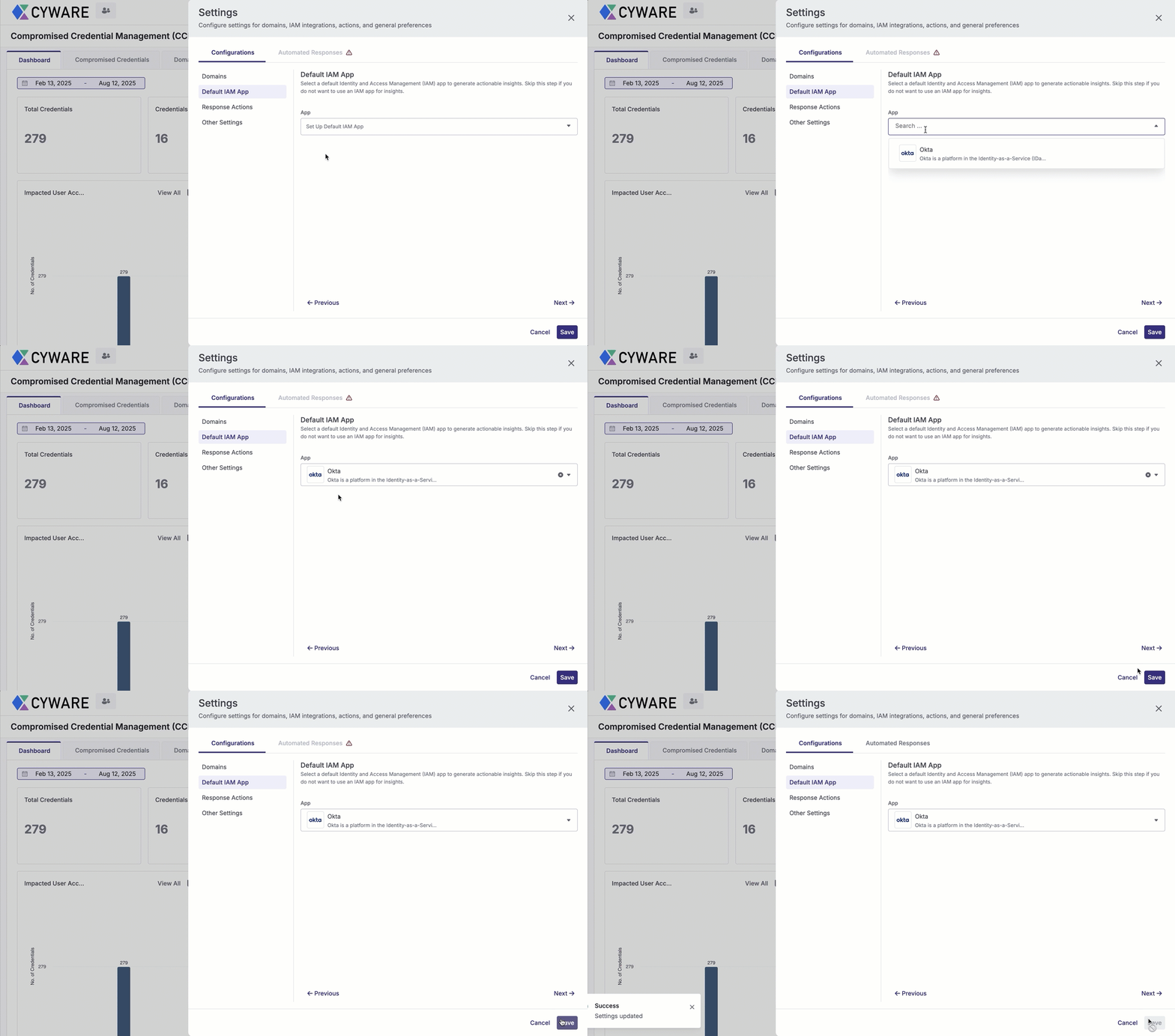
You can optionally select a default Identity and Access Management (IAM) app to enhance threat insights and prioritize exposed credentials more effectively. To select an IAM app as the default, you must have the app configured. If no apps are configured, click Configure IAM or go to Manage Apps to install and configure the preferred IAM app. For more information, see Configure IAM Integrations for Threat Insights.
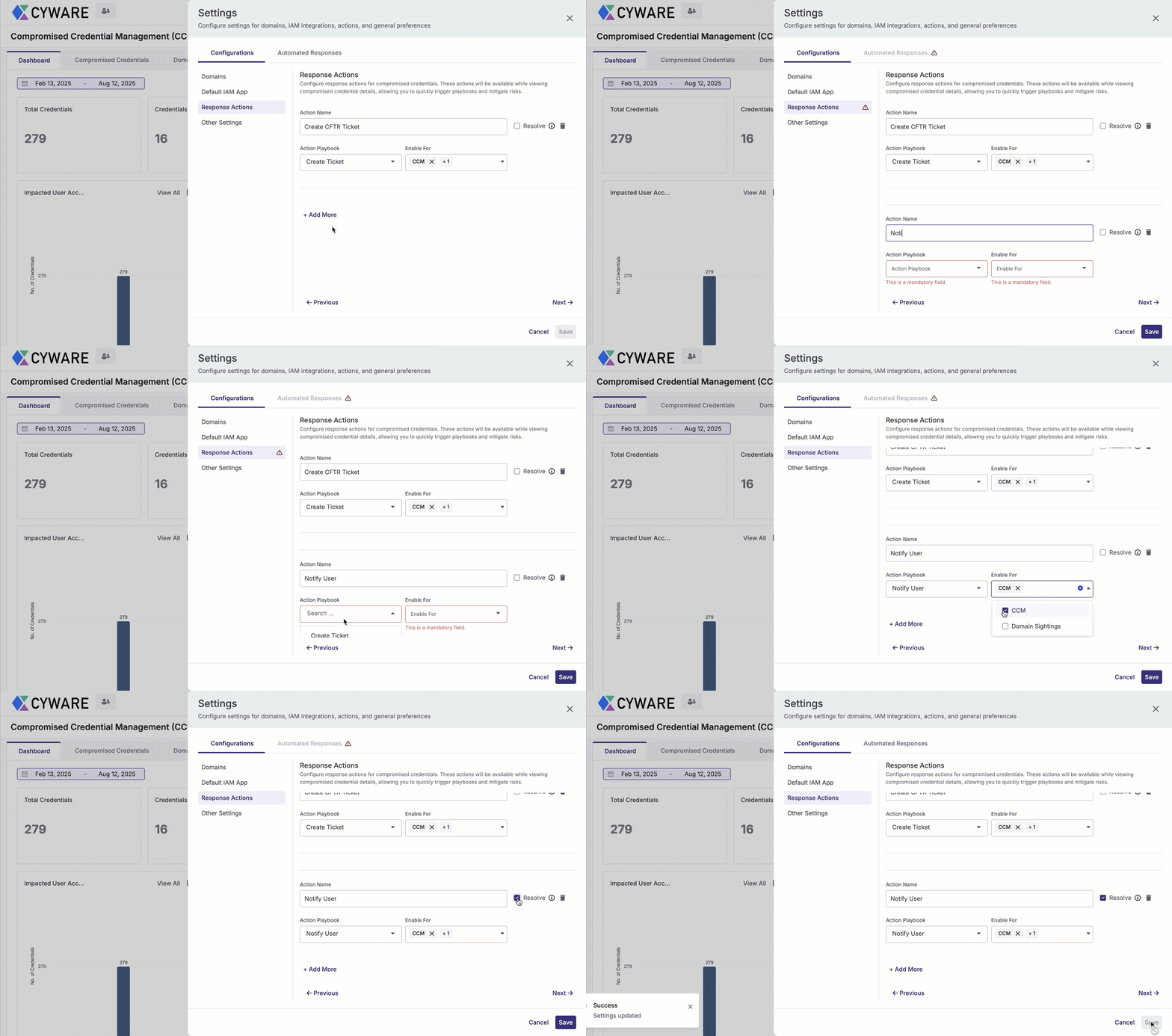
You can use response actions to quickly mitigate risks from exposed credentials and domain mentions. These actions allow you to operationalize your remediation efforts by triggering automated playbooks that perform corrective steps, reducing manual effort and accelerating response.
To use response actions, create playbooks in Cyware Orchestrate, assign labels to them, and configure those labeled playbooks in CCM. For more information, see Configure Response Actions.
By default, you can configure the following sample playbooks as response actions:
Notify User: Inform affected users about credential or domain exposure so they can take corrective action.
Create ServiceNow Ticket: Log exposure incidents into ITSM workflows to ensure timely tracking and remediation.
Create Respond (CFTR) Ticket: Route incidents to Respond to add context, streamline investigation, and enable coordinated threat response.
Send Slack Message: Send notifications in Slack to provide immediate visibility into potential risks.
Note
To use these actions, you must configure the required app instances in Manage Apps and update the corresponding playbooks with those instances.
To configure additional response actions, follow these steps:
Go to Cyware Orchestrate and select Playbooks.
Create a playbook for the response action. For more information, see Create Playbook.
Create and assign a label to the playbook. Labels define where the playbook appears in CCM, and only labeled playbooks are available for response actions. For more information, see Create a Label.
In CCM, go to Settings > Configurations > Response Actions and click Add More. Use the following information:
Action Name: Enter a display name for the action. For example, Expire Current User Sessions
Action Playbook: Select the playbook for the action from the dropdown. You can only access the playbooks you label in Orchestrate.
Enable For: Choose whether to enable the action for Compromised Credentials, Domain Sightings, or both.
Resolve: Select this checkbox if you want this action to mark the risk as resolved when applied.
Click Save to add the response action.
After configuring, the actions are available on the details page for Compromised Credentials and Domain Sightings, where you can initiate them while verifying information. For more information, see View Compromised Credentials and View Domain Sightings.
Use this section to configure additional preferences that support CCM operations.
Password Visibility: Turn on the toggle to allow analysts to reveal and view compromised passwords of other users while reviewing breach data. By default, this is turned off.
Automated Responses
Automated responses allow you to reduce manual effort in managing risks from compromised credentials and domain sightings. By defining user groups and assigning response actions to them, you can ensure that corrective steps are triggered automatically when a potential risk is detected.
Note
By default, you can view a default group that contains all compromised credentials. The response action you configure is applied to each breached credential.
To configure automated responses, use the following information:
Go to Settings > Automated Responses.
Note
Alternatively, you can access Automated Responses from Threat Insights > Configure Actions.
Click Add More and use the following information:
Group Name: Enter a name for the group. For example, CTOs and CXOs.
Affected Users Email IDs: To upload a CSV file containing the email addresses of the users in this group, click Browse. You can also download the Sample CSV for reference.
Response Actions: To specify an automated response action, select an action from the Response Actions dropdown. For example, Reset Password.
After configuring, save the changes.
You can modify existing groups to update their names, email lists, or response actions. To edit a group, click the edit icon for a group and use the following information:
Update the name and assign or remove actions as required.
To edit emails, click the vertical ellipsis in Affected Users Email IDs and use the following information:
Download: To download the current email list as a CSV file, click Download.
Replace: To upload a new CSV file and replace the current email list, click Replace.
Note
You cannot download or replace the email list of the default group.
To remove a group, click Delete.
Note
You cannot delete the default group, but you can edit the group name and response actions.